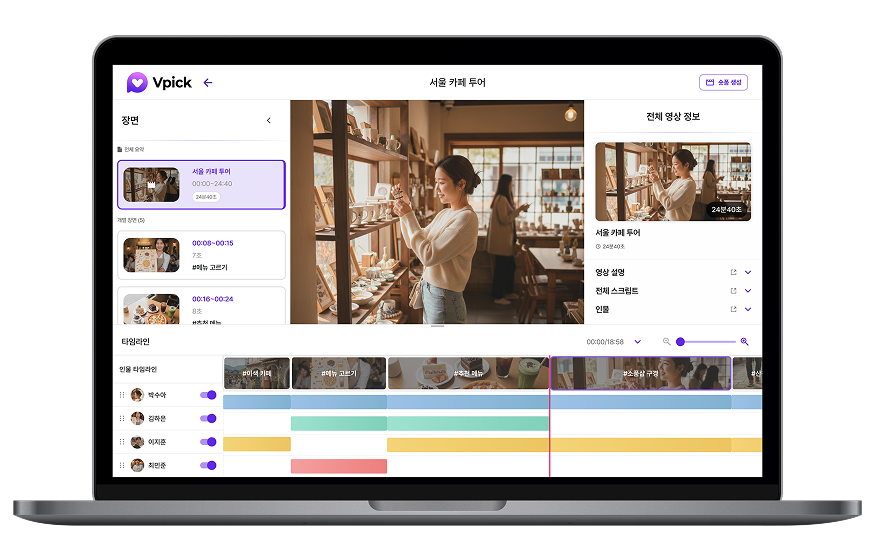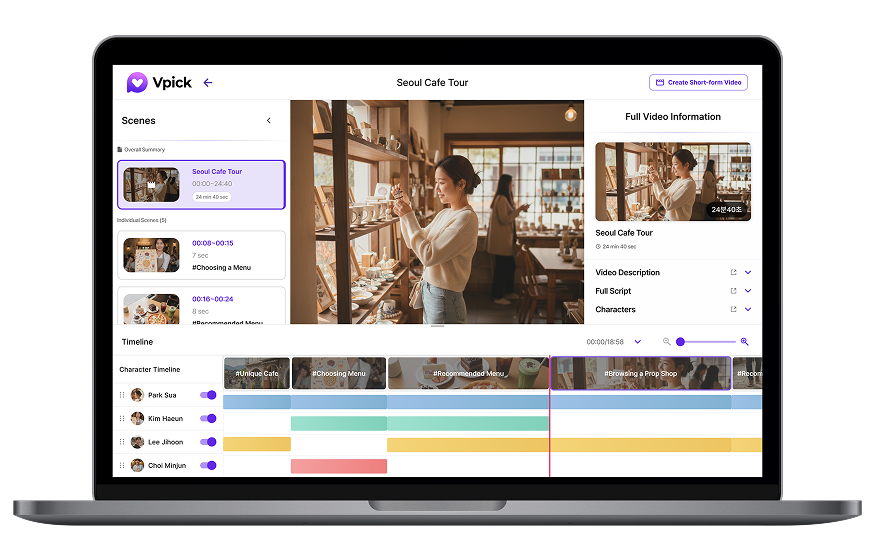


Ever spent valuable time manually searching for scenes featuring a specific person across multiple videos? With Vpick’s Person tab and Clip Combination feature, you can significantly reduce editing time and streamline your workflow.
In this guide, you’ll learn step by step how to register person tags, search videos by person, and create person-focused short-form content using the Person tab.
Getting Started with the Person Tab: Registering Name Tags
To make full use of the Person tab, you first need to register name tags. Name tags can be added from the details page of an analyzed video, and the process is simple.
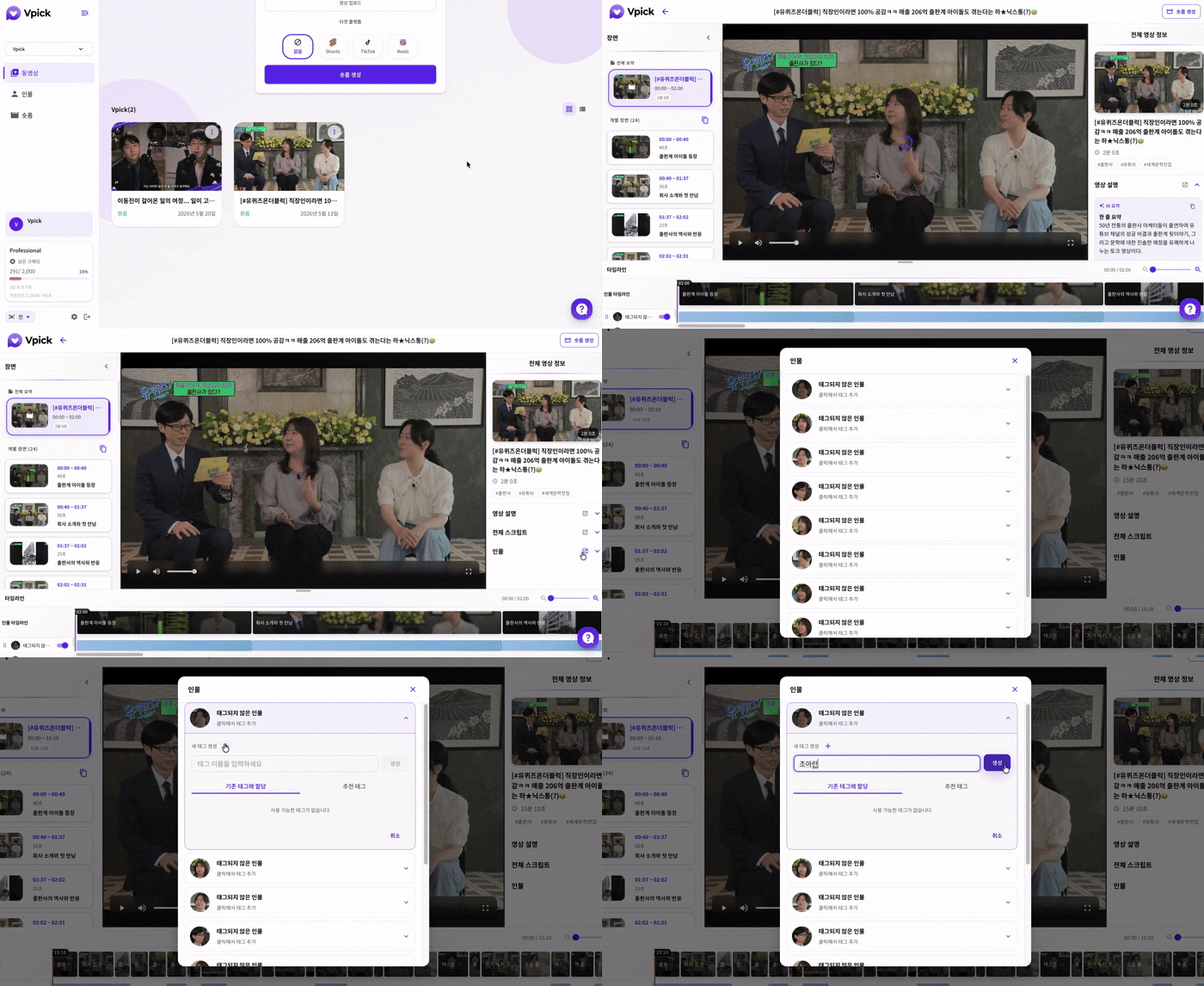
Select an analyzed video and review the list of detected individuals on the details page. You can manually enter a name tag for a selected person or use AI-generated name tag suggestions based on facial recognition.
Registered individuals and name tags can be edited or deleted from the Person tab at any time.
⚠️ Important Note
In some cases, AI may recognize the same person as multiple different individuals. If this happens, assign a name tag to one of the detected faces first, then link the remaining faces to the same existing name tag. This will merge them into a single person profile for easier and more organized management.
Managing Registered Name Tags
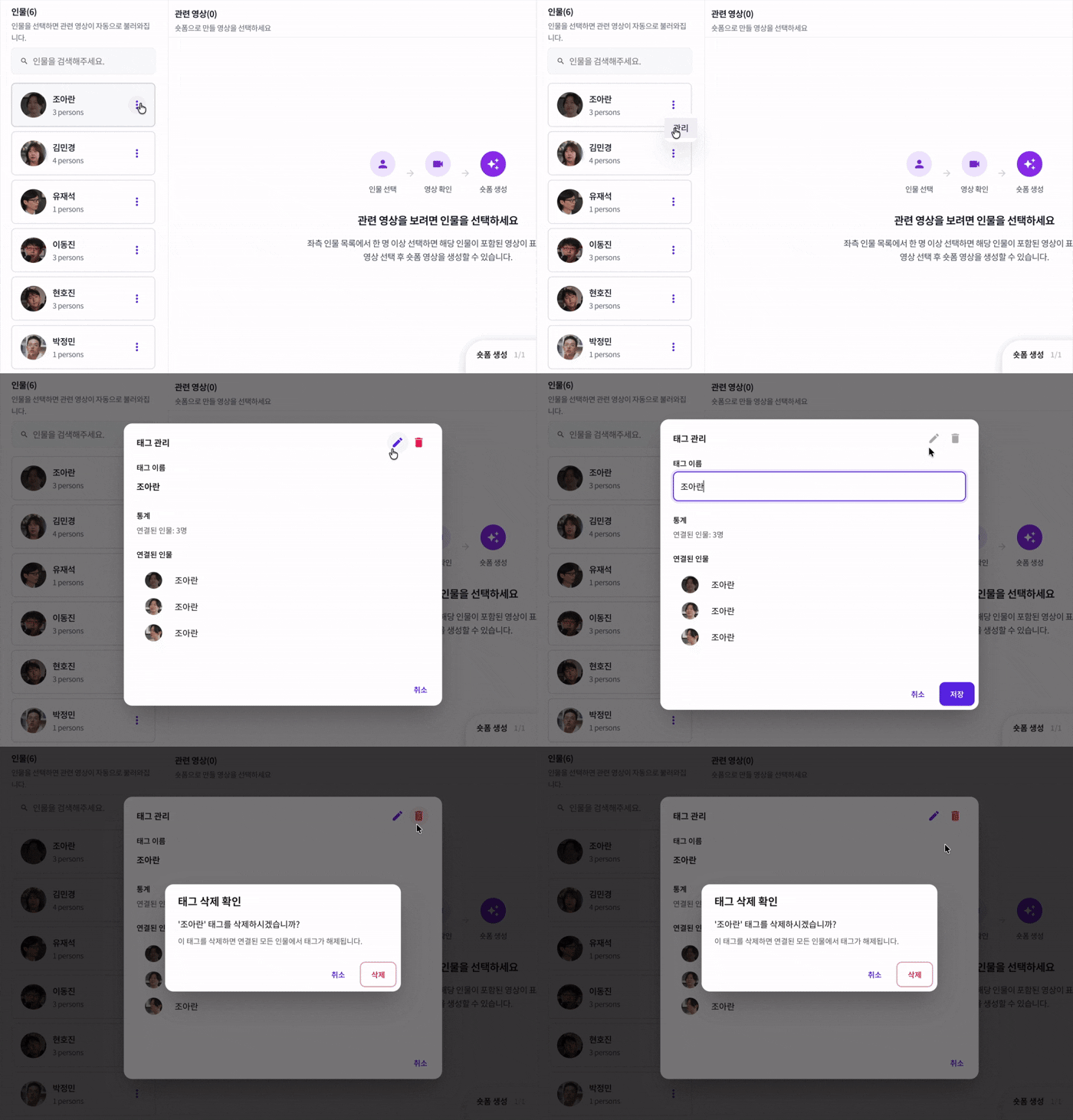
The Person tab allows you to view registered individuals, edit name tags, and check appearance segments. Organizing your name tags in advance makes it much easier to find scenes featuring specific people, even within large video libraries.
Creating Shorts Based on People
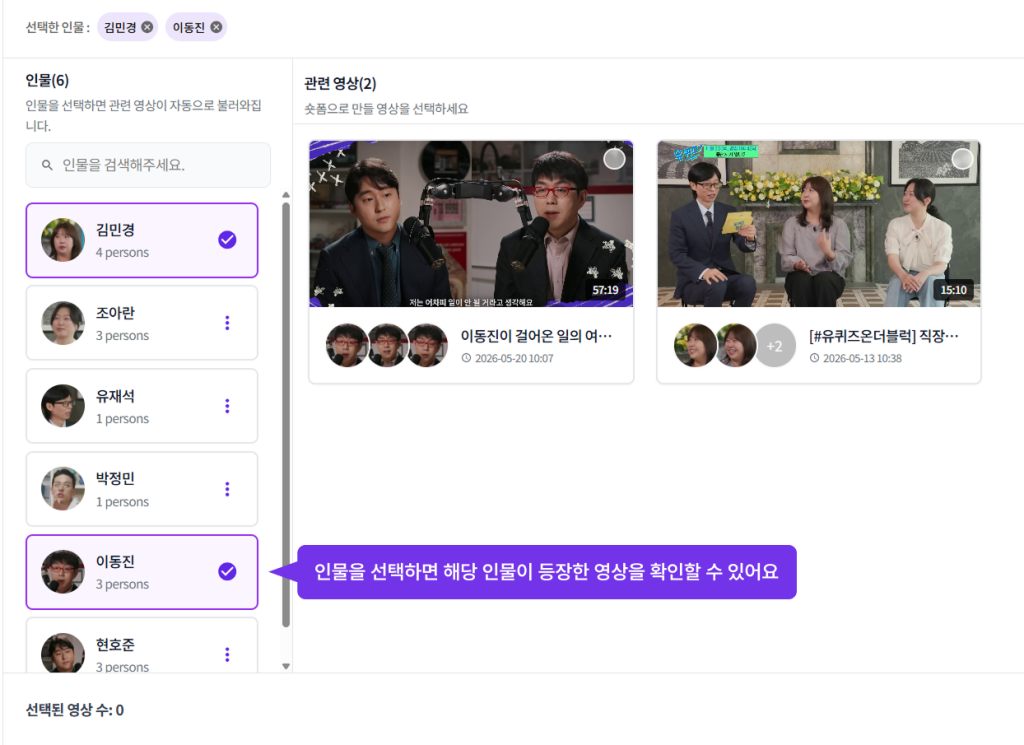
Once you’ve registered name tags, select a person from the Person tab. You’ll see a list of videos featuring that individual, and by opening a video, you can jump directly to the segments where they appear. This eliminates the need to review entire videos and significantly reduces search time.
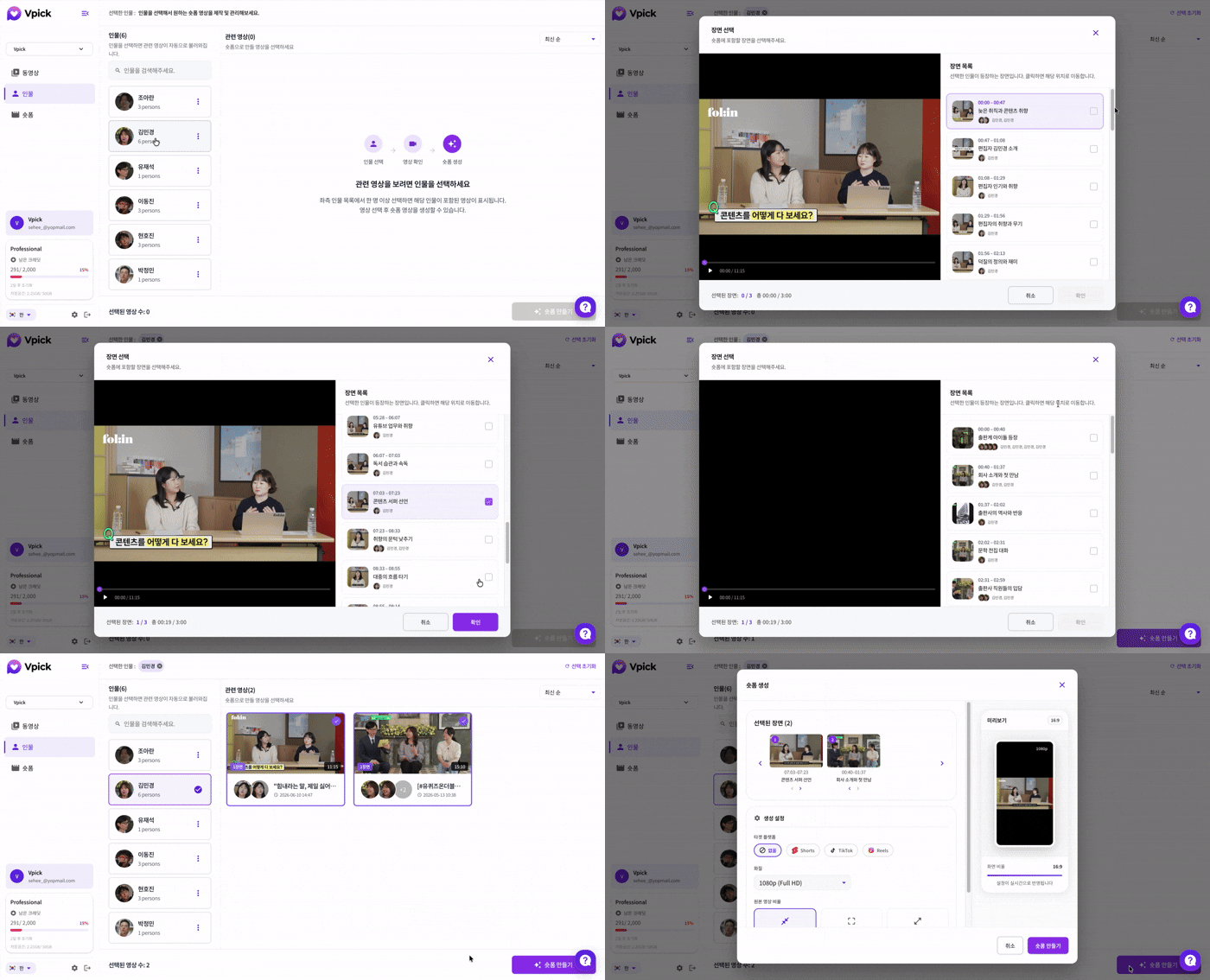
Users can review the highlighted segments, select the scenes they need, and combine those clips to create short-form content.
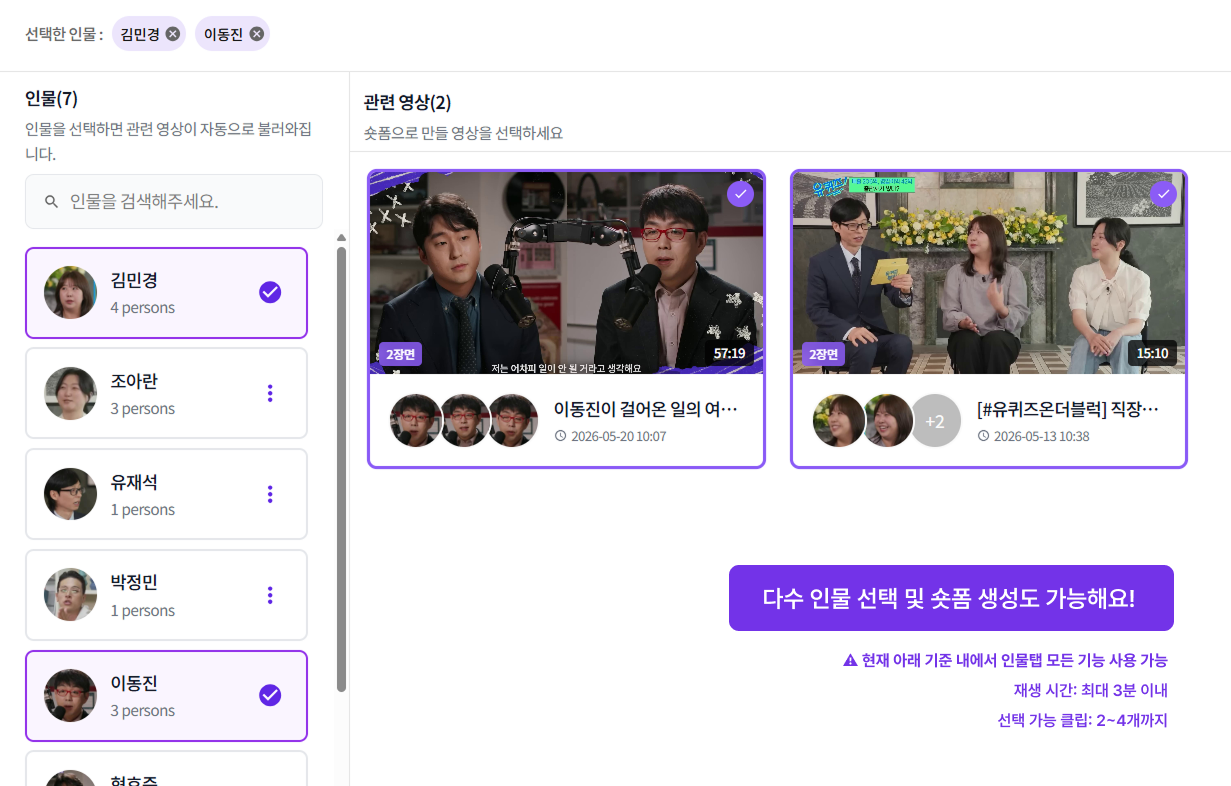
You can select multiple people at once, making it easy to create a variety of short-form content based on different combinations of individuals.
👍 Recommended Content Ideas
Quotes & Insights Compilation
Create shorts that compile key messages from a person’s interviews, lectures, or media appearances.
(Example: Inspiring Quotes from Lee Ji-young to Lift Your Spirits)
Featured Person Highlights
Create highlight reels featuring the best moments of a specific person across multiple videos.
(Example: Faker’s Legendary 2024 Worlds Journey)
Chemistry & Interaction Compilation
Create shorts featuring interactions between two or more people.
(Example: Best Yoo Jae-suk & Lee Kwang-soo Moments from Running Man)
Best Moments by Topic
Create shorts by collecting standout scenes related to a specific theme from multiple videos.
(Example: Top 5 Funniest “Trying Not to Laugh” Fails)
Conclusion
In this guide, we’ve explored how to use Vpick’s Person tab to create short-form videos focused on the people you want. If you’ve spent too much time searching for and trimming the right scenes, it’s time for a better workflow. Leave behind the tedious process of manual clip editing and start creating shorts quickly and efficiently with Vpick.