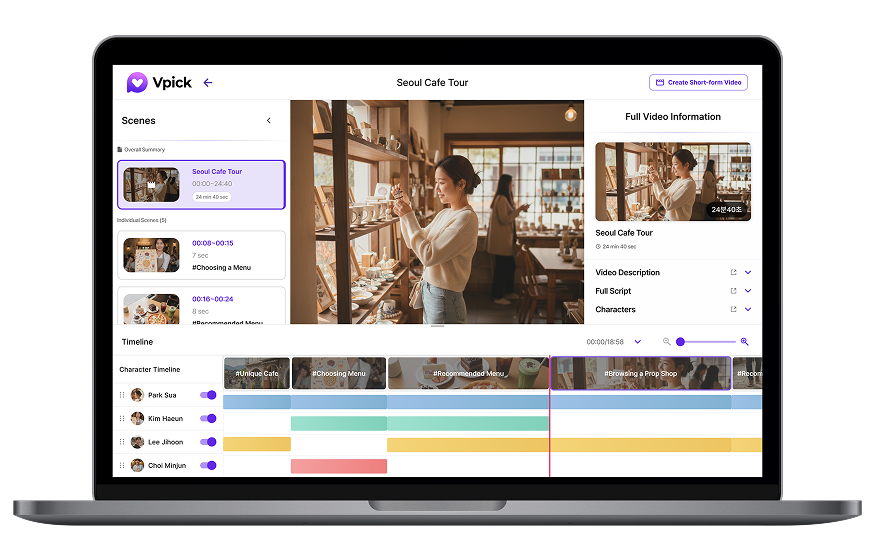
Once you’ve generated a short-form video, the next step is to refine it and match it to your personal or brand style.
In this tutorial, we’ll walk through how to review generated shorts and edit them—covering everything from title and caption editing to adding new captions.
How to Find Your Generated Shorts
After generating a short-form video from AI analysis results, have you ever wondered:
“Where did my short go?”
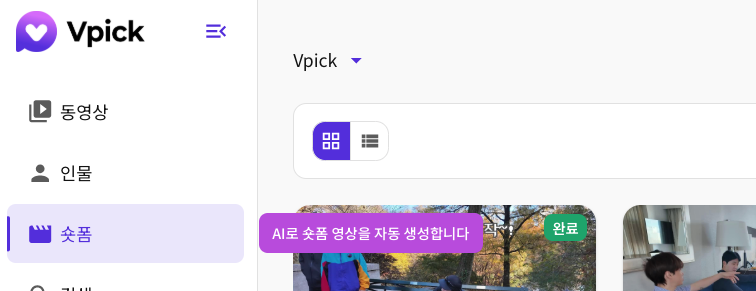
In Vpick, all generated short-form videos can be found in the Shorts tab.
Simply click the back button, navigate to the Shorts tab, and you’ll see the most recently generated shorts displayed at the top.
Even if you generate multiple clips, they are automatically sorted by the latest results, making them easy to manage.
👉 If you want to learn more about creating shorts
🔗 [튜토리얼] 브이픽 초보자를 위한 완벽 가이드 — 숏폼 생성 편
Editing Titles and Captions
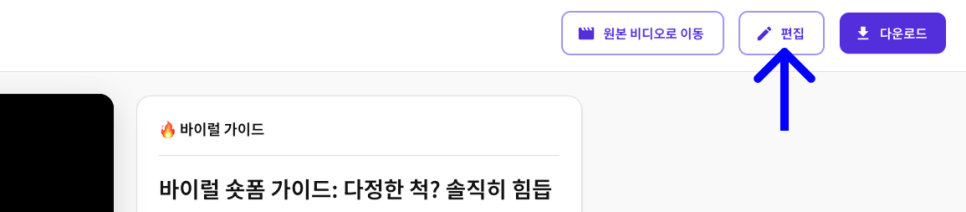
Click on a generated short, and you’ll see an Edit button in the top-right corner.
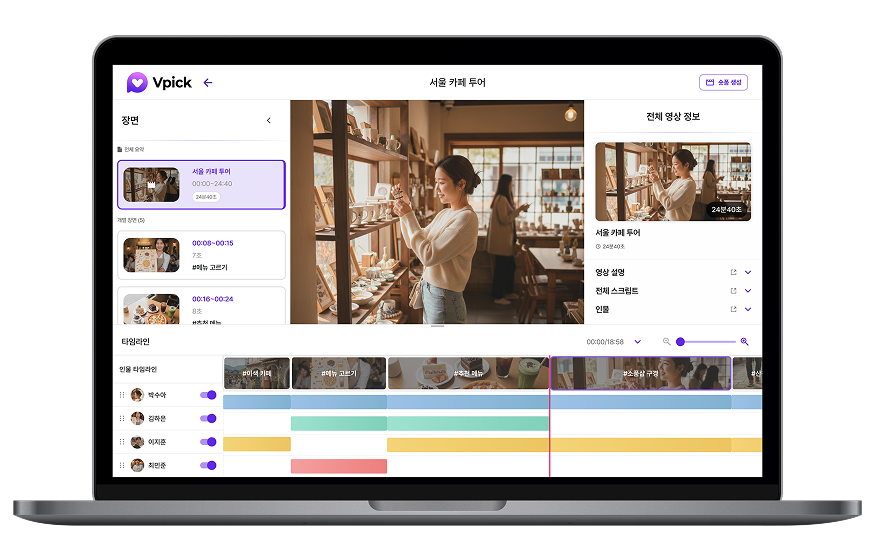
Clicking this button opens the short-form editing interface.
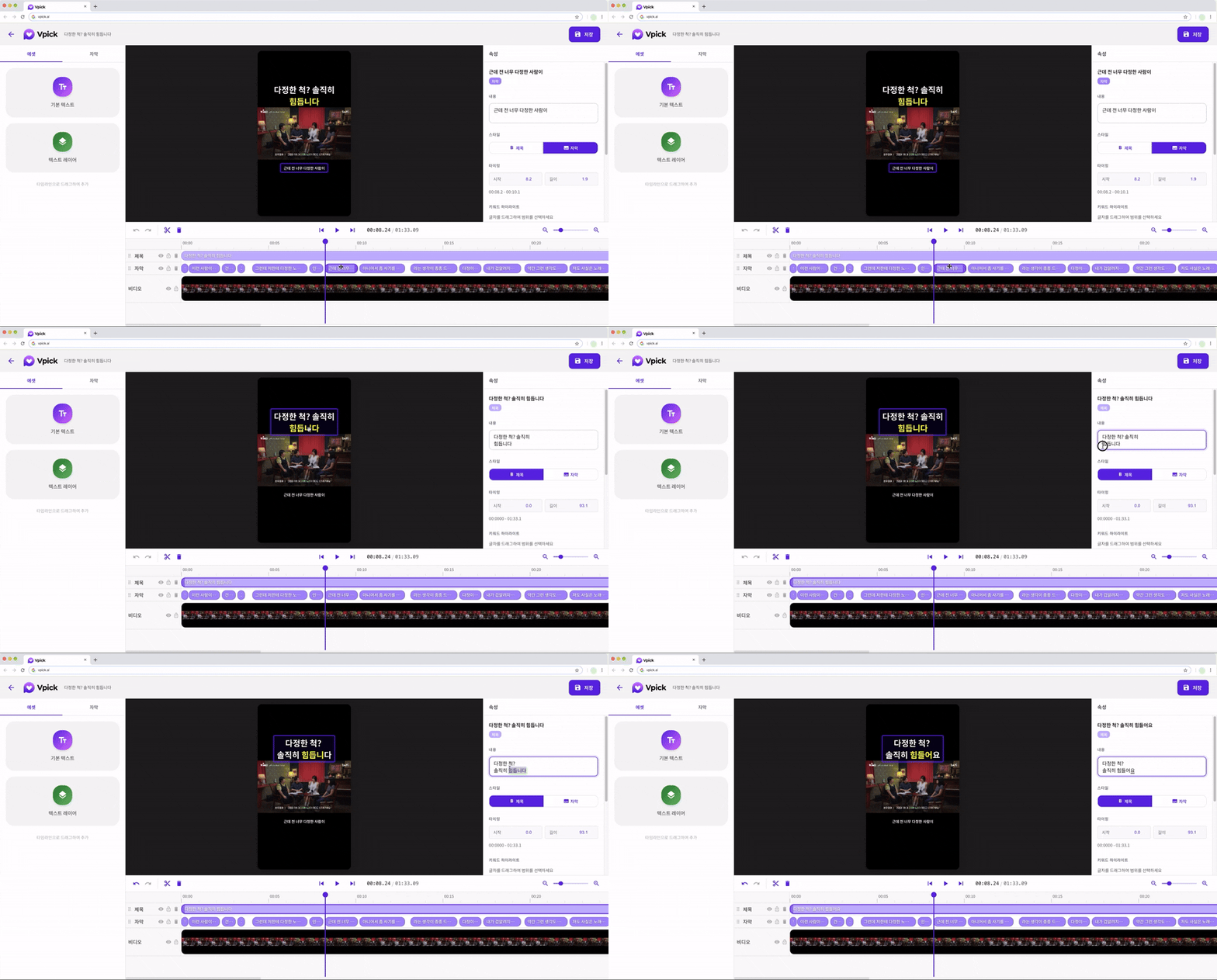
Vpick automatically generates titles and captions using AI, but you can freely edit them to match your preferences.
When you click a title or caption, the properties panel on the right side will activate, allowing you to edit the content instantly.
Adjusting Caption Timing
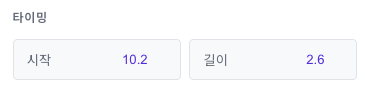
If captions appear slightly out of sync with the video, you can use the timing adjustment feature.
By directly entering the caption start time and duration, you can align captions more naturally with the video flow.
Adjusting Caption Size and Position
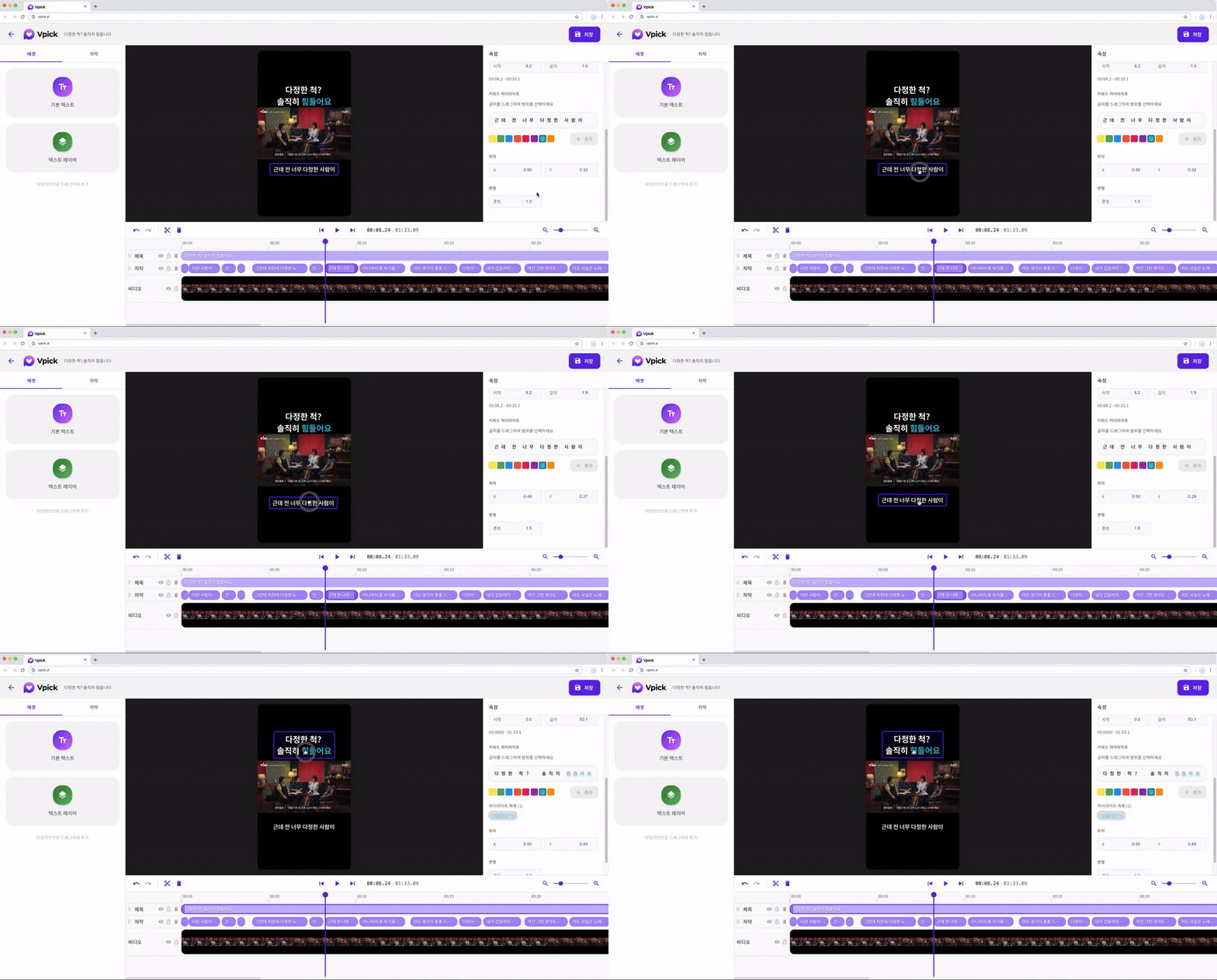
Caption position can be adjusted simply by dragging it on the screen. For more precise placement, you can also adjust the exact position values numerically. Font size can also be customized by entering the desired size value.
Highlight Key Messages
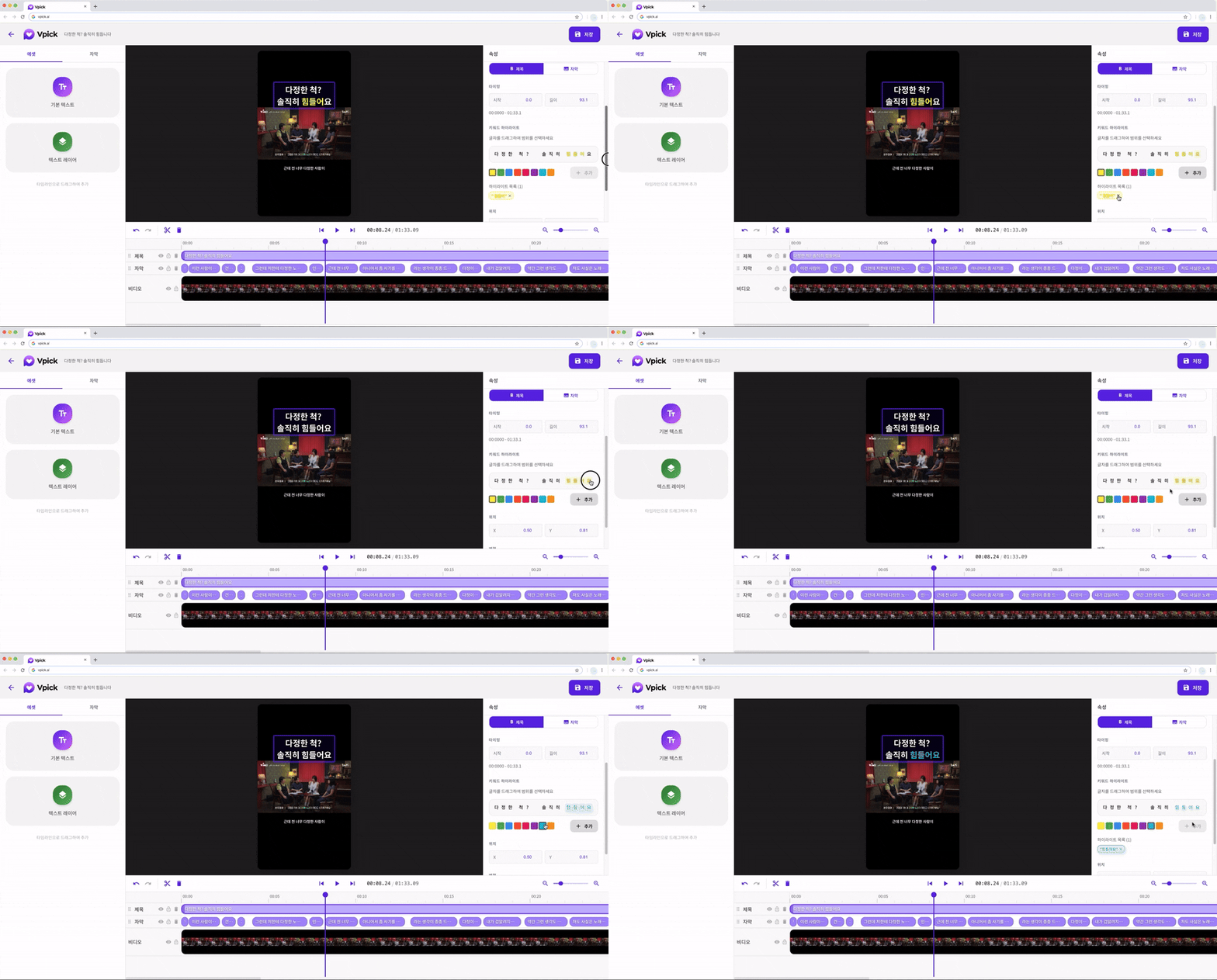
You can emphasize important words or phrases using the highlight feature. Simply drag over the text you want to emphasize and choose a highlight color. This helps viewers instantly recognize the most important parts of the message.
Adding New Captions from the Assets Tab
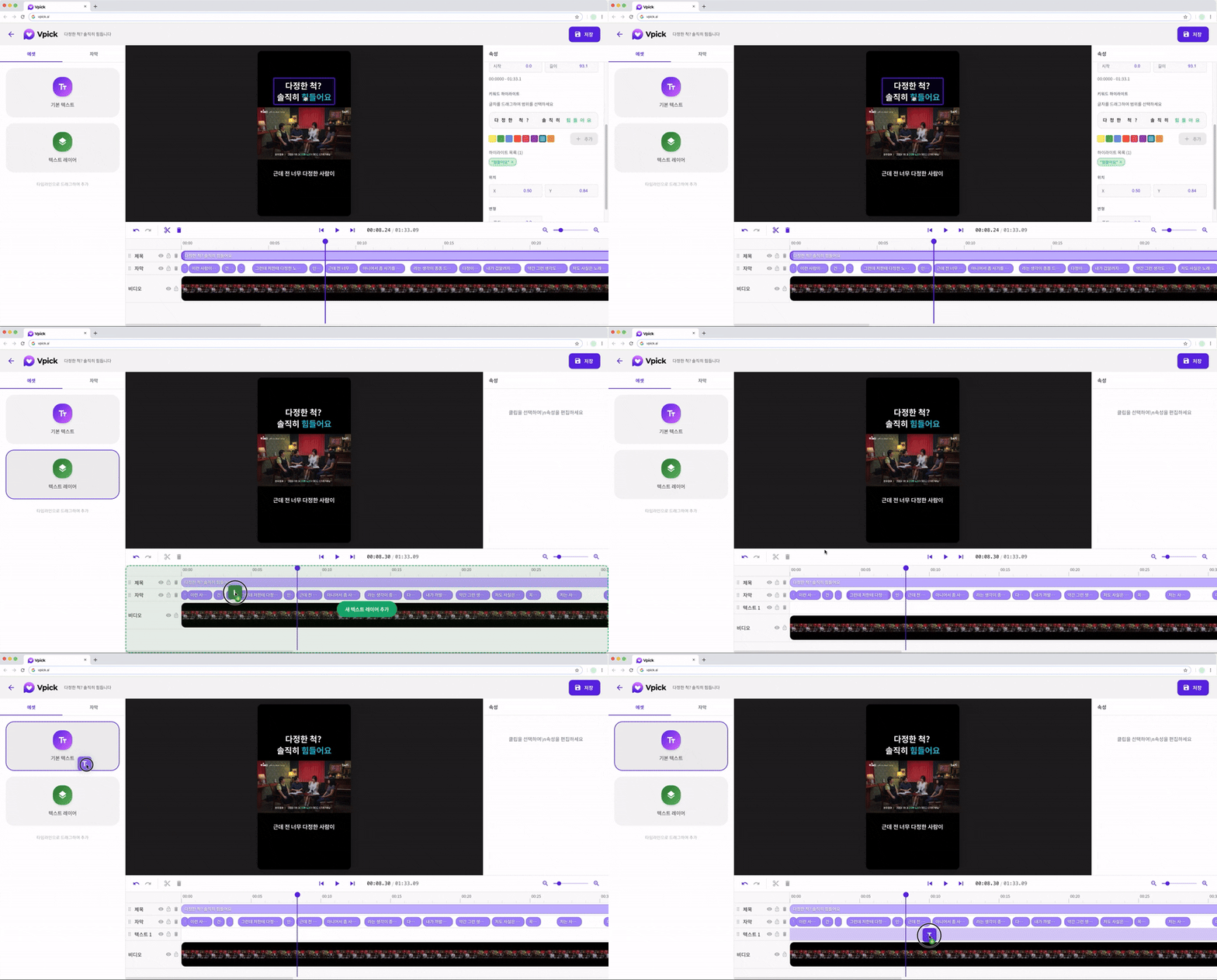
If you want to add new text beyond the existing captions, use the Assets tab on the left side. Drag a text layer onto the timeline and enter the content you want to display.
🧐 Can I Add Captions Without a Text Layer?
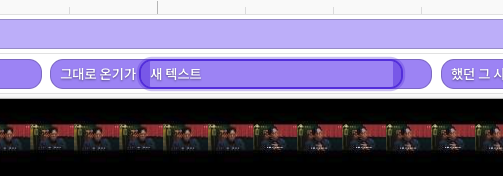
Yes, you can. However, if you add captions without using a text layer, captions may overlap with each other.
For cleaner editing and better layout control, we recommend using text layers when adding new captions.
Using the Caption Tab
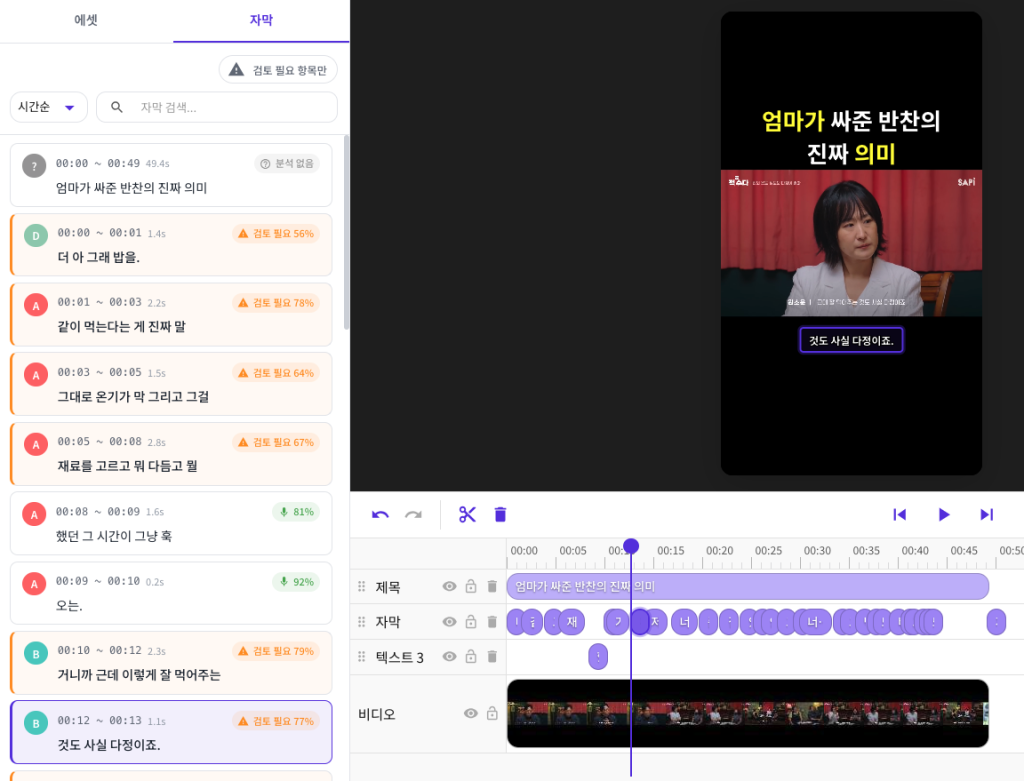
The Caption tab allows you to review the entire script of your short-form video at a glance.
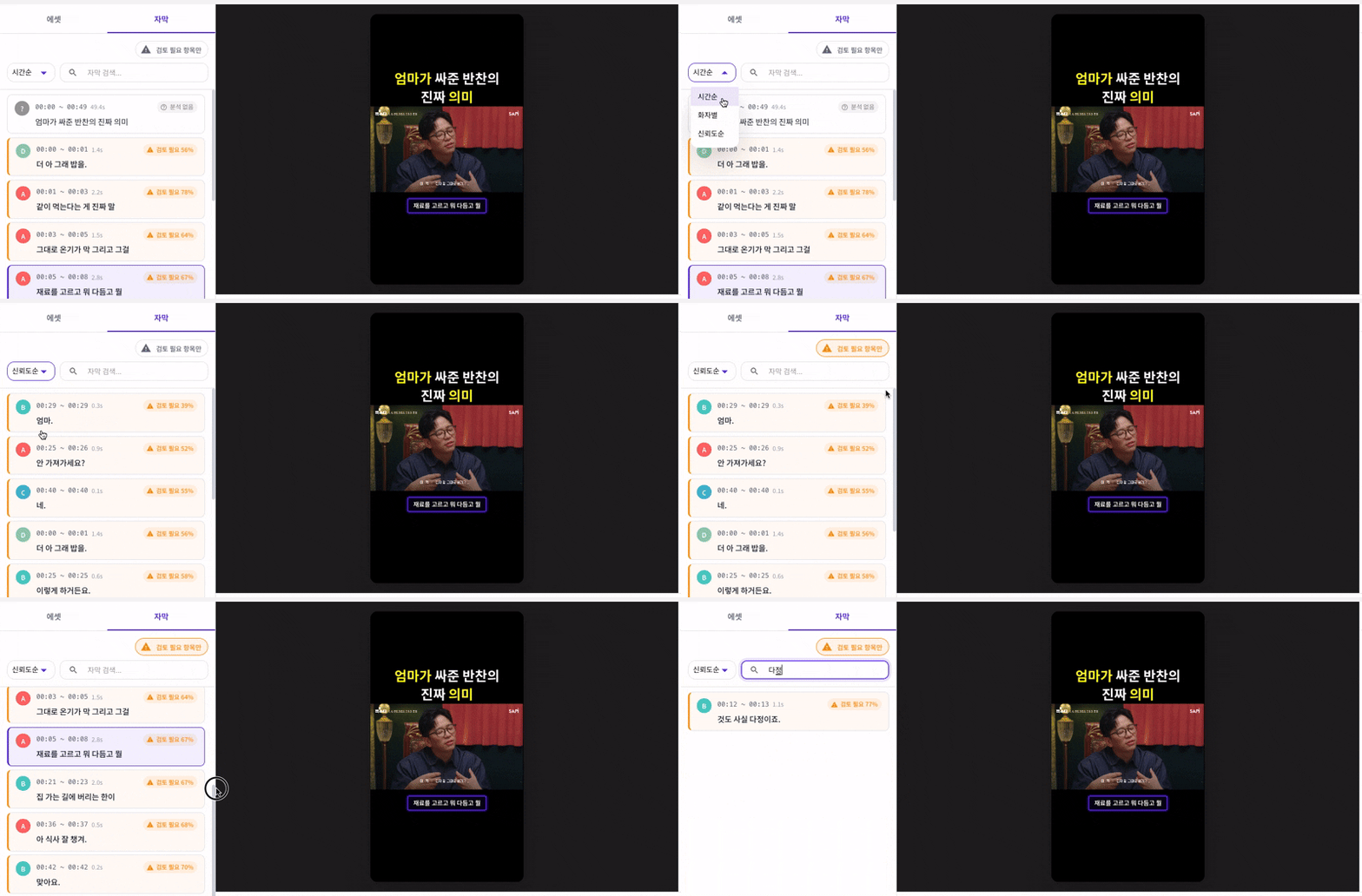
Captions can be sorted by:
- Time order
- Speaker
- Confidence score
Sorting by confidence score is especially useful because it displays captions generated through speech-to-text (STT) in order of accuracy.
This allows you to quickly identify which captions may need review.
You can also filter and review only the captions that require verification, reducing unnecessary repetitive checks.
If you find a caption that needs editing, simply click the corresponding clip and modify it directly from the properties panel.
Using the caption search feature can also significantly speed up the editing process.
Conclusion
Vpick’s short-form editing tools are designed so that you can refine AI-generated shorts without learning complex video editing software.
From editing titles and captions to adjusting timing and managing the full script, everything can be handled in a single interface.
If short-form editing has always felt complicated, try creating and refining your clips quickly and easily with Vpick.