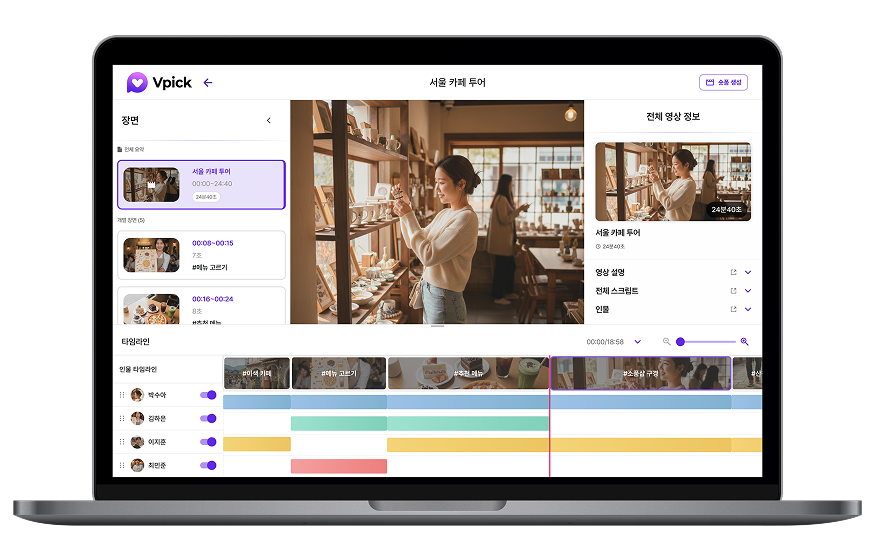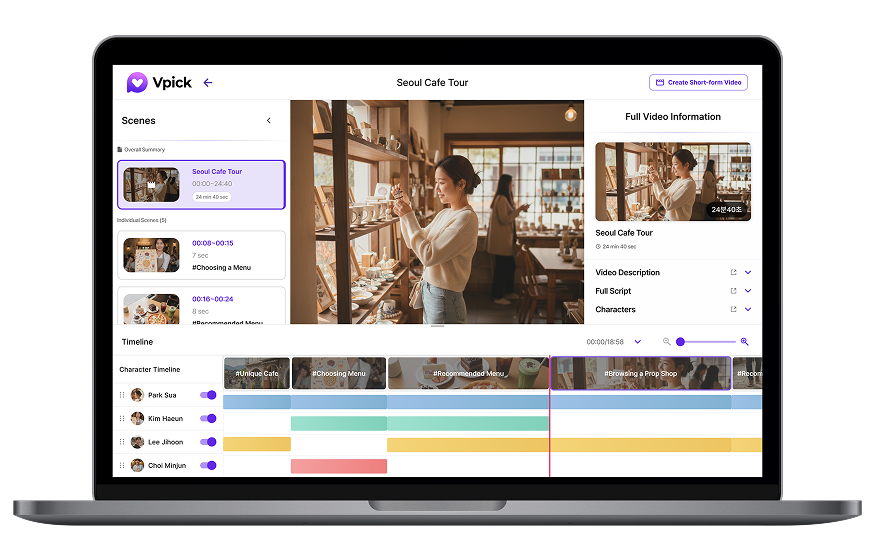

Today, a single long-form video often needs to be repurposed into multiple short-form clips.
If the time and resources required for editing feel overwhelming, there’s a smarter way to approach it.
Vpick automatically analyzes uploaded videos using AI and generates short-form videos and a Viral Guide based on the analysis results.
In this tutorial, we’ll walk through the entire short-form creation process—from locating the short-form creation button to generating clips and reviewing the final results—so even first-time users can easily follow along.
Where to Find the Short-Form Creation Button
There are two main ways to generate short-form videos in Vpick.
1. Create from the Video Analysis Page
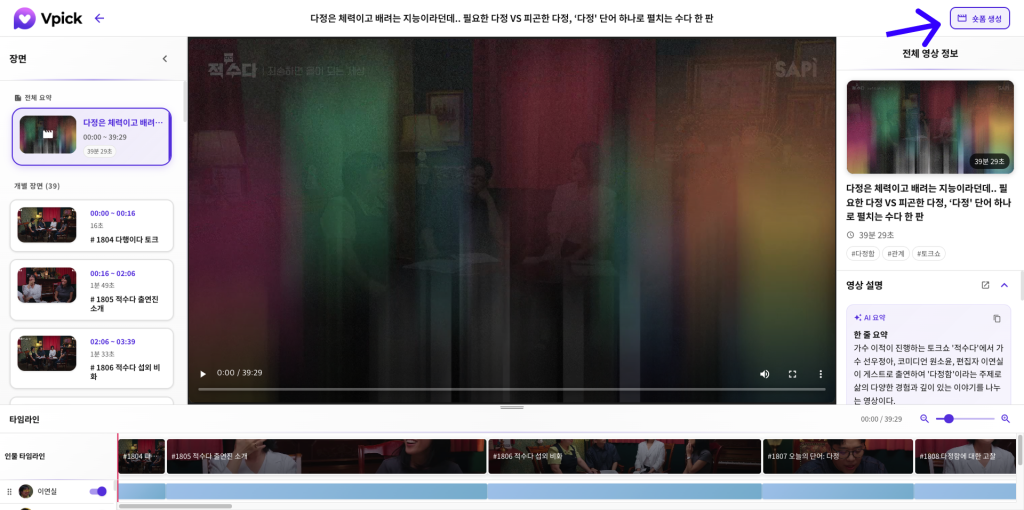
After uploading a video, open the analysis page to review the scene analysis results.
From there, you can immediately generate short-form videos based on the analyzed scenes.
2. Create from the Shorts Tab
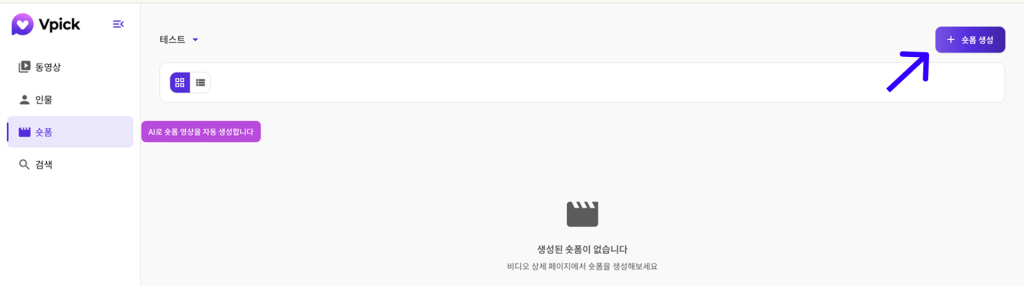
In the Shorts tab, you can select any analyzed video within the project and generate short-form clips from it.
As long as the video analysis has been completed, short-form generation is available regardless of which path you use.
How to Generate Short-Form Videos
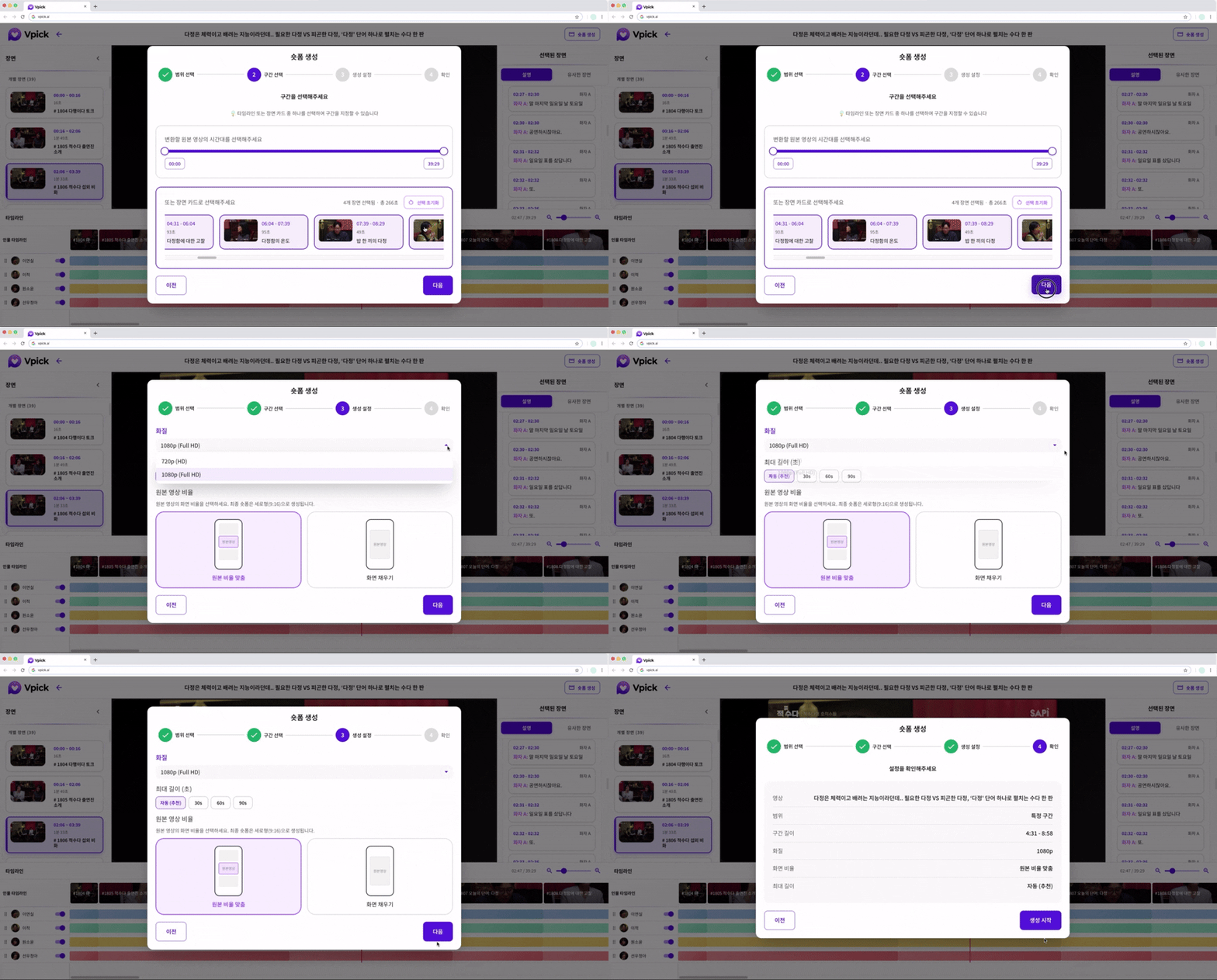
When creating short-form videos, you can choose between two options:
• Generate from the entire video
• Generate from a selected segment
In this tutorial, we’ll focus on the segment selection method, which best highlights Vpick’s unique capabilities.
Vpick displays the entire video timeline as scene cards.
Each scene card includes:
• A thumbnail preview
• A summary description
This allows you to quickly understand the content of each scene without replaying the video to find specific timestamps.
To generate a short-form video:
- Select the scene you want to use
- Define the clip range
- Configure the short-form options such as:
- Video quality
- Video length
- Aspect ratio
After confirming the settings, click Start Generation.
The short-form generation process typically takes 4–6 minutes, and you can track the progress in real time through the status window in the bottom-right corner of the screen.
📚 Selecting Multiple Scenes
To select a range of scenes:
1. Click the scene card where the segment begins
2. Click the scene card where the segment ends
All scenes between the two selected points will automatically be included in the range.
Reviewing the Generated Short-Form and Viral Guide
Once the short-form generation is complete, Vpick automatically displays:
• The generated short-form video
• The Viral Guide
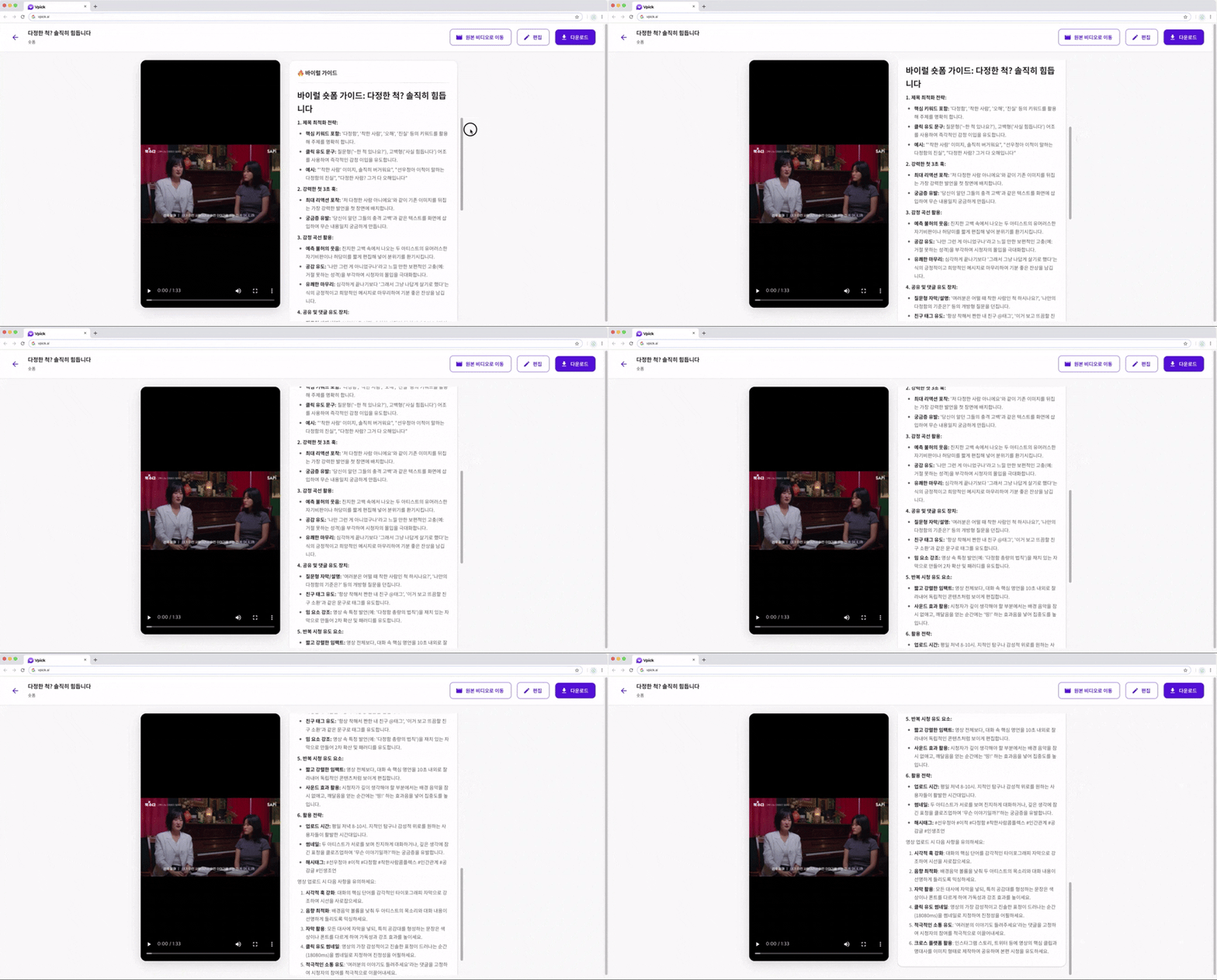
The Viral Guide includes helpful insights such as:
• 3-second hook suggestions
• Recommended hashtags
• Posting tips for social platforms
Even users who are new to short-form content creation can easily understand which elements to consider before uploading their videos.
🧐 Which Video Was This Short Made From?
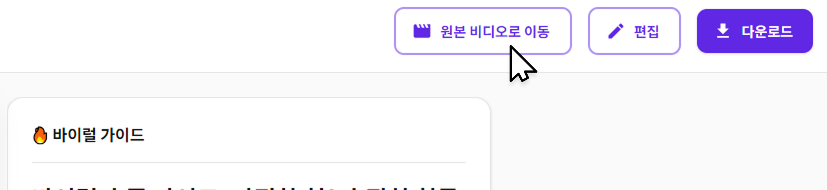
Sometimes you may wonder: “Which original video was this short created from?”
Simply click the Go to Original Video button located at the top-right corner of the screen. This will take you directly back to the original video.
Conclusion
Vpick’s short-form generation feature does more than simply trim videos.
Because it is built on AI video analysis results, it considers which segments are most suitable for short-form content.
This allows even users with little editing experience to create short-form videos quickly and confidently.
If short-form production has always felt complicated, try generating clips easily with Vpick—without the complex editing process.